Companies & projects
Every listed miner we track gets one company page, and every mine or deposit it owns gets one project page. This guide walks both, tab by tab, using BHP and its Escondida mine as the example. Company and project pages are free to browse on every plan.
Landing on a company
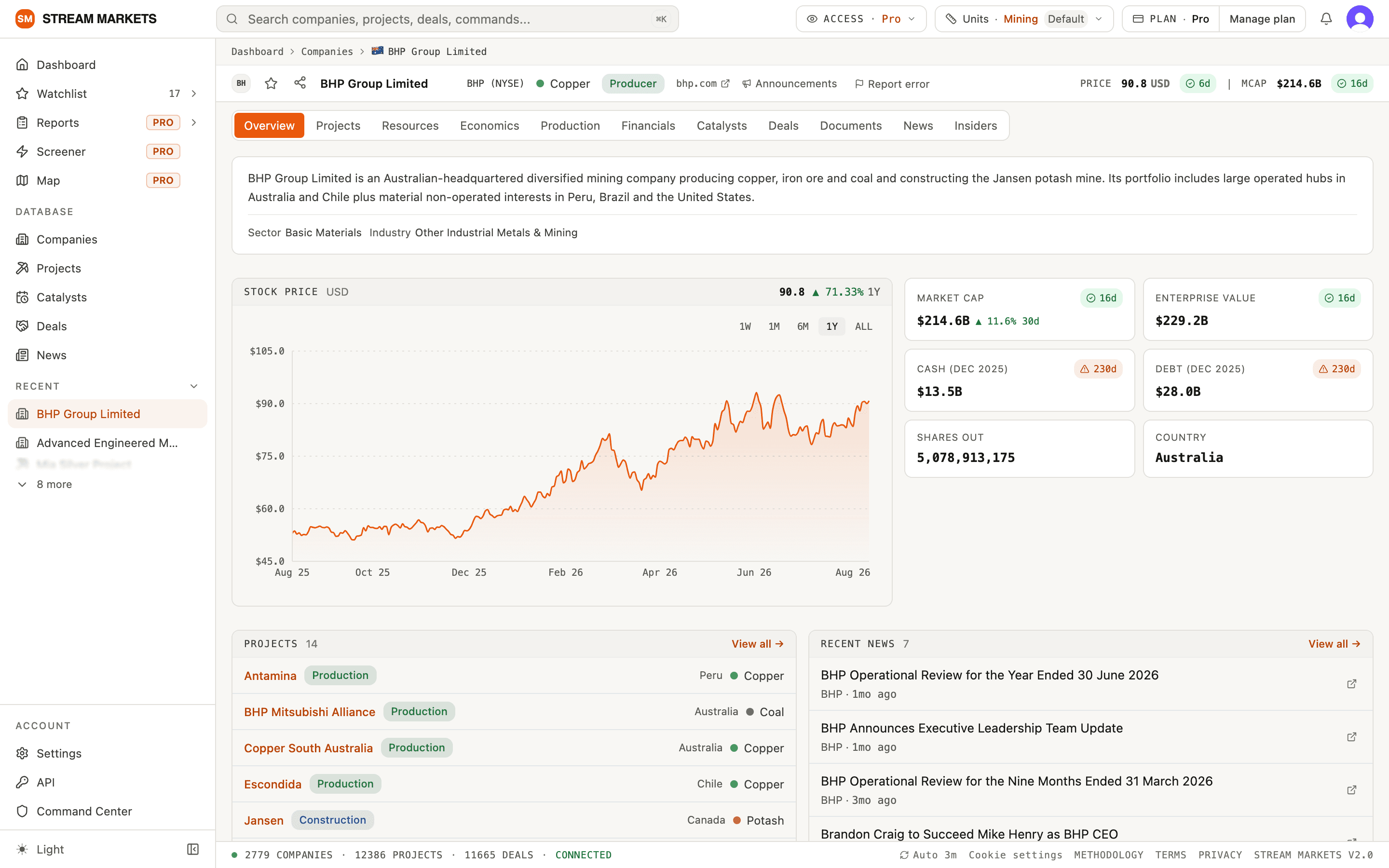
Search for BHP and you land on its Overview: a plain description of what the company does, its sector and industry, a price chart, and tiles for market cap, enterprise value, cash, debt, shares outstanding and country. Below that sit its projects and its recent news. The header carries the ticker and exchange, its main commodity, a stage badge, a link to the company’s website, its Announcements feed and a Report error button.
The tabs, one by one
The tabs along the top go deeper. Each one is a table of what the company has published, extracted from its own filings.
- Overview - the summary above: description, price, key figures, projects, news.
- Projects - every mine and deposit the company holds, each linking to its project page.
- Resources - every resource and reserve estimate the company has published.
- Economics - study economics such as NPV, IRR and capex, per study.
- Production - reported production history.
- Financials - price history plus market figures like market cap and shares outstanding.
- Catalysts - the dated milestones the company expects next.
- Deals - financings and transactions on record.
- Documents - the filings and reports behind the data, downloadable.
- News - the company’s announcements as we ingest them, newest first.
- Insiders - insider transactions on record.
The Resources tab, up close
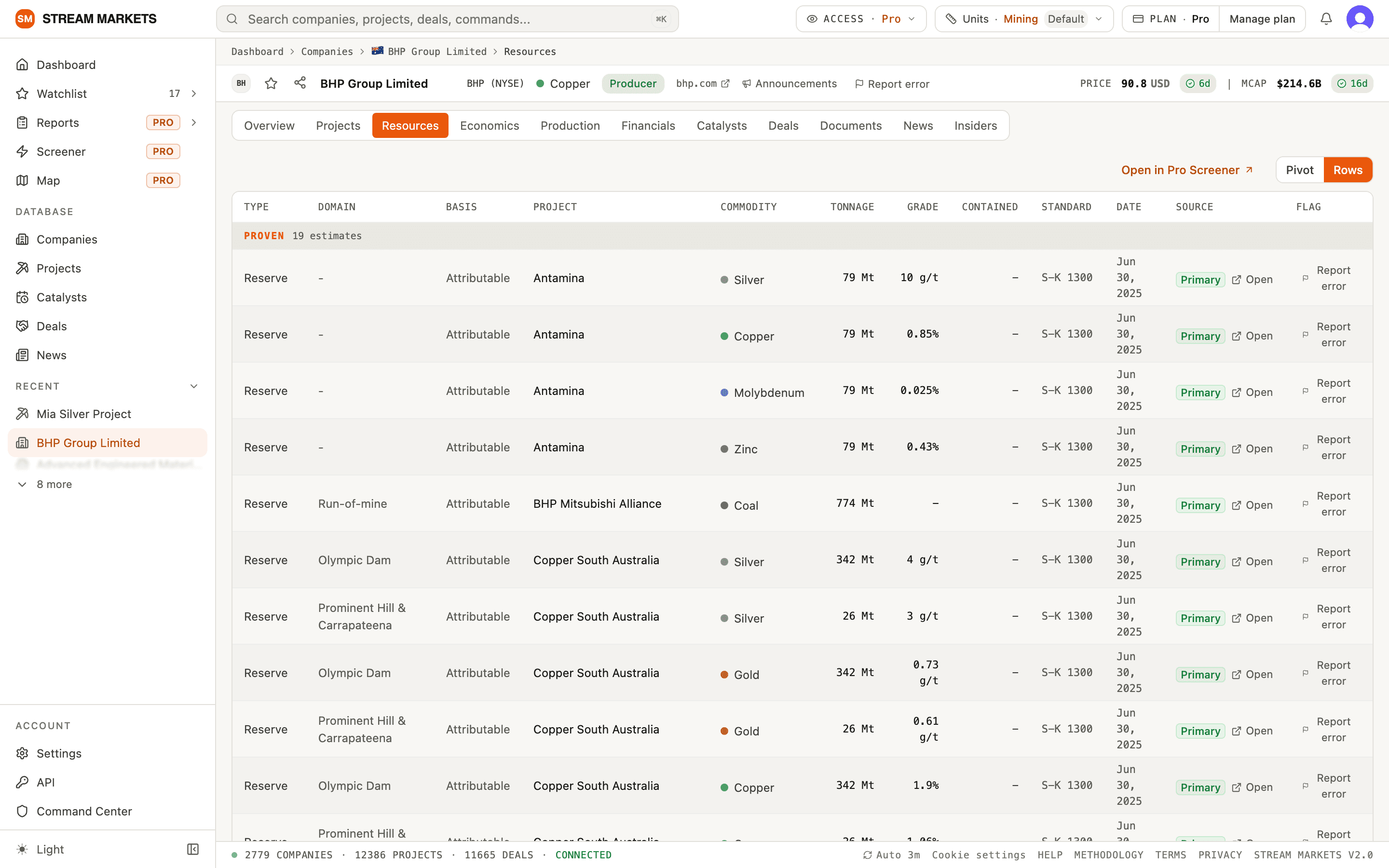
Resources is the densest tab, so here is how to read it. Each row is one estimate: its type (reserve or resource), the project it belongs to, the commodity, tonnage, grade, the reporting standard and the date. Rows are grouped by category - Proven, Probable and so on. A green Primary chip means the source link goes to the original filing or exchange announcement; Open takes you there. Rows and Pivot toggle between the flat table and a summarised layout, and Open in Pro Screener carries the whole dataset into the screener.
The Catalysts tab
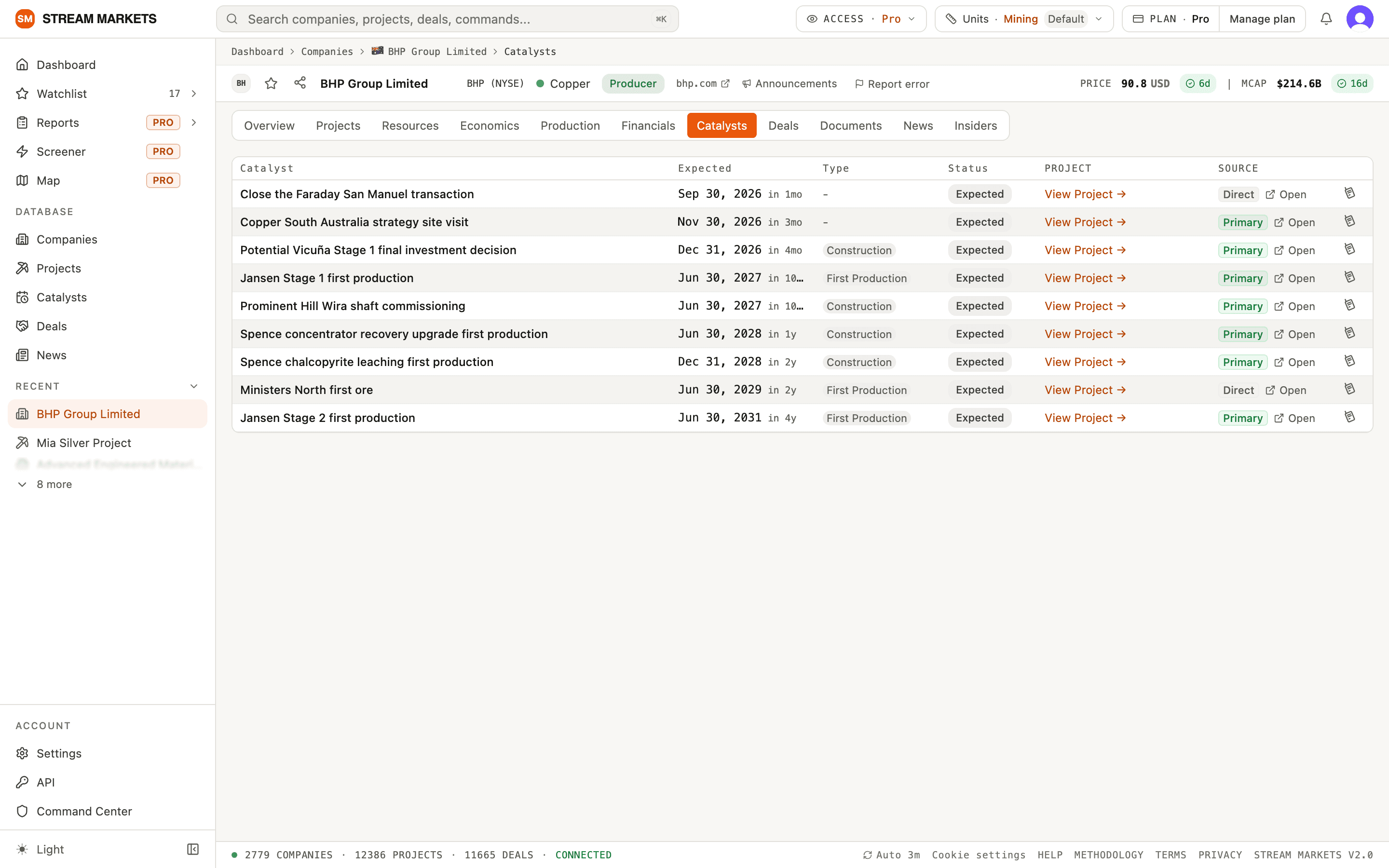
Catalysts are the milestones a company has told the market to expect - a first production date, a shaft commissioning, an investment decision. Each row shows the expected date, how far away it is, the type and status, a View Project link, and the source it came from.
How old is this number?
Read the label beside each figure: Reported is the financial reporting period, Close is the price date and Updated is the refresh time. Where an age badge is shown, it counts from that labelled date. Up to 30 days the chip is green with a tick. From 31 to 90 days it turns amber with a clock. Past 90 days it carries a warning triangle. Old data is labelled, not hidden - a balance sheet figure from a half-year report will honestly say 230d. Hover a chip to see the exact date behind it.
Project pages
Click Escondida in BHP’s project list and you get its project page: a satellite map of the site and a project sheet - the one-glance summary of what and where this asset is. The Via filings label on the sheet means we have not yet linked the exact document each field came from; clicking it points you at the company’s filings. Below sit the project’s description, news from its owner, its resource estimates and its study economics. The tabs are a subset of the company ones: Overview, Resources, Economics, Production and Documents.
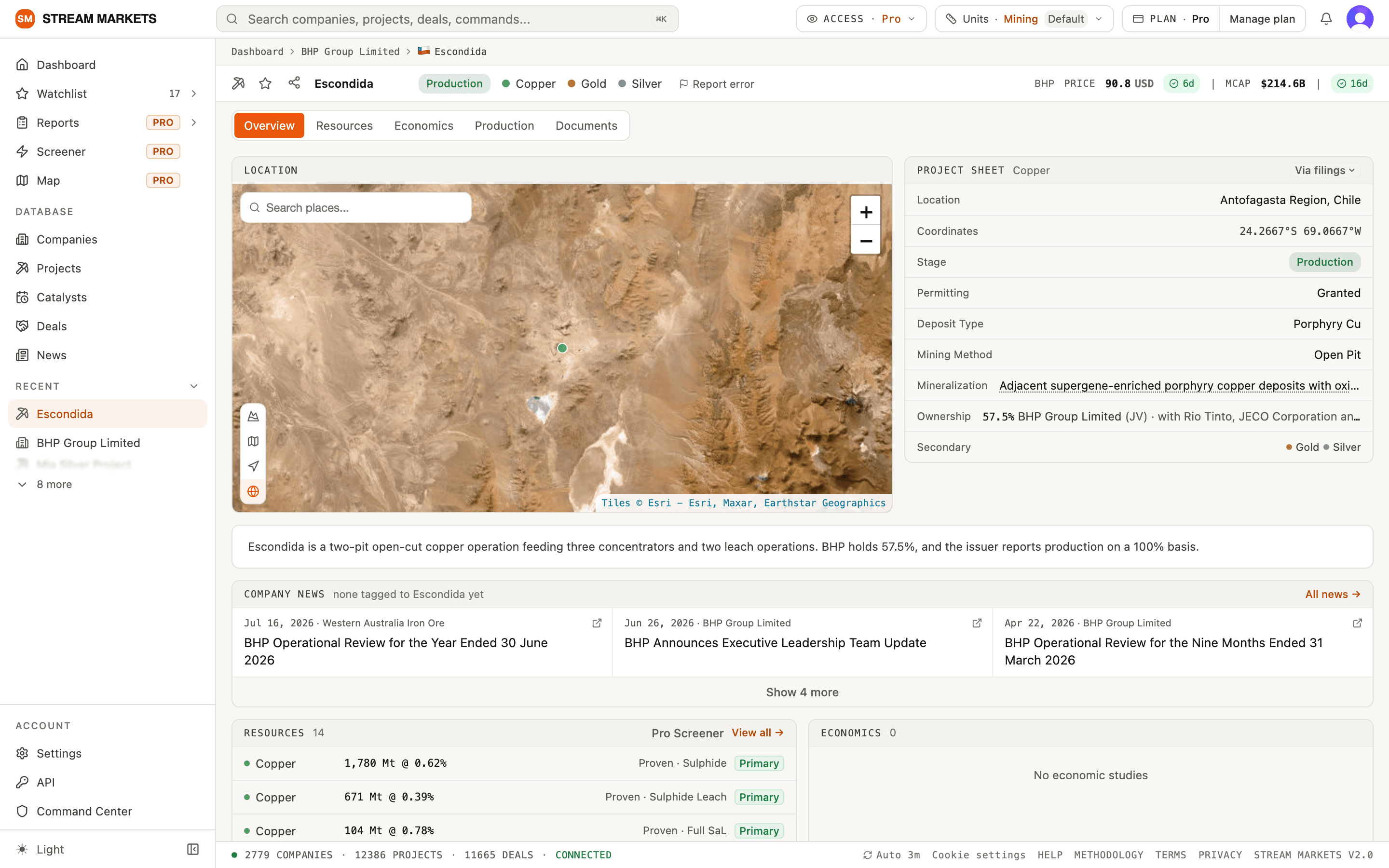
- Location and Coordinates - where the project sits, matching the pin on the map.
- Stage - Exploration through Production, the same badge used everywhere in the app.
- Permitting - the permitting status on record.
- Deposit Type, Mining Method, Mineralization - the geology and how it is mined.
- Ownership - who holds what share, including joint-venture partners.
- Secondary - commodities produced alongside the primary one.
Companies and projects link both ways. A company’s Projects tab and its Overview list open project pages; a project’s header shows its owner’s ticker and price, and the breadcrumb takes you back. Catalyst rows link to their project too.
Follow it, or fix it
The star in the header follows the company or project, which adds it to your watchlist - the watchlist guide covers what happens next. If a number looks wrong, use Report error - it sits on company and project headers and supported data rows, and data & accuracy explains how we check reports against the filing. New here? Start with getting started.
Quick steps
- Open the company or project from search or a table row.
- Choose the relevant tab and inspect the record’s date, units and source.
- Use the star or Watch control to follow it. To report incorrect information, sign in and choose Report error in the header or the flag on the affected row, describe the problem and choose Send.
Choosing the right record
- Company pages include Overview, Projects, Resources, Economics, Production, Financials, Catalysts, Deals, Documents, News and Insiders. Project pages focus on Overview, Resources, Economics, Production and Documents.
- A project or asset is not the same as its listed owner. Check ownership and reporting basis before attributing its whole resource or production to one company.
- An empty tab means no matching record is available here. It is not evidence that the company has never published that information. A gated tab or preview describes an access limit.
Reading estimates and linked details
- Use Rows for individual estimates and Pivot for grouped comparisons. Check project, domain, category, date and basis before comparing totals. Do not add an issuer total to its component categories.
- Economics are per study: check study date, currency, discount rate and assumptions. Production needs its reporting period and units. A share price date is not the financial statement date.
- Open news, deals and catalysts for their details and linked sources. A Documents link can lead outside Stream Markets; unavailable or moved filings can be reported with the record’s flag.
When company information is wrong
- Report error in the company or project header opens a dedicated correction form. Row flags identify an individual estimate more precisely. Sign in, fill in What's wrong?, optionally add a suggested value and Source link, then Send.
- StreamBot can draft the correction text but cannot submit it. See Data & accuracy for confirmation, withdrawal, review outcomes and the support fallback.