Alerts
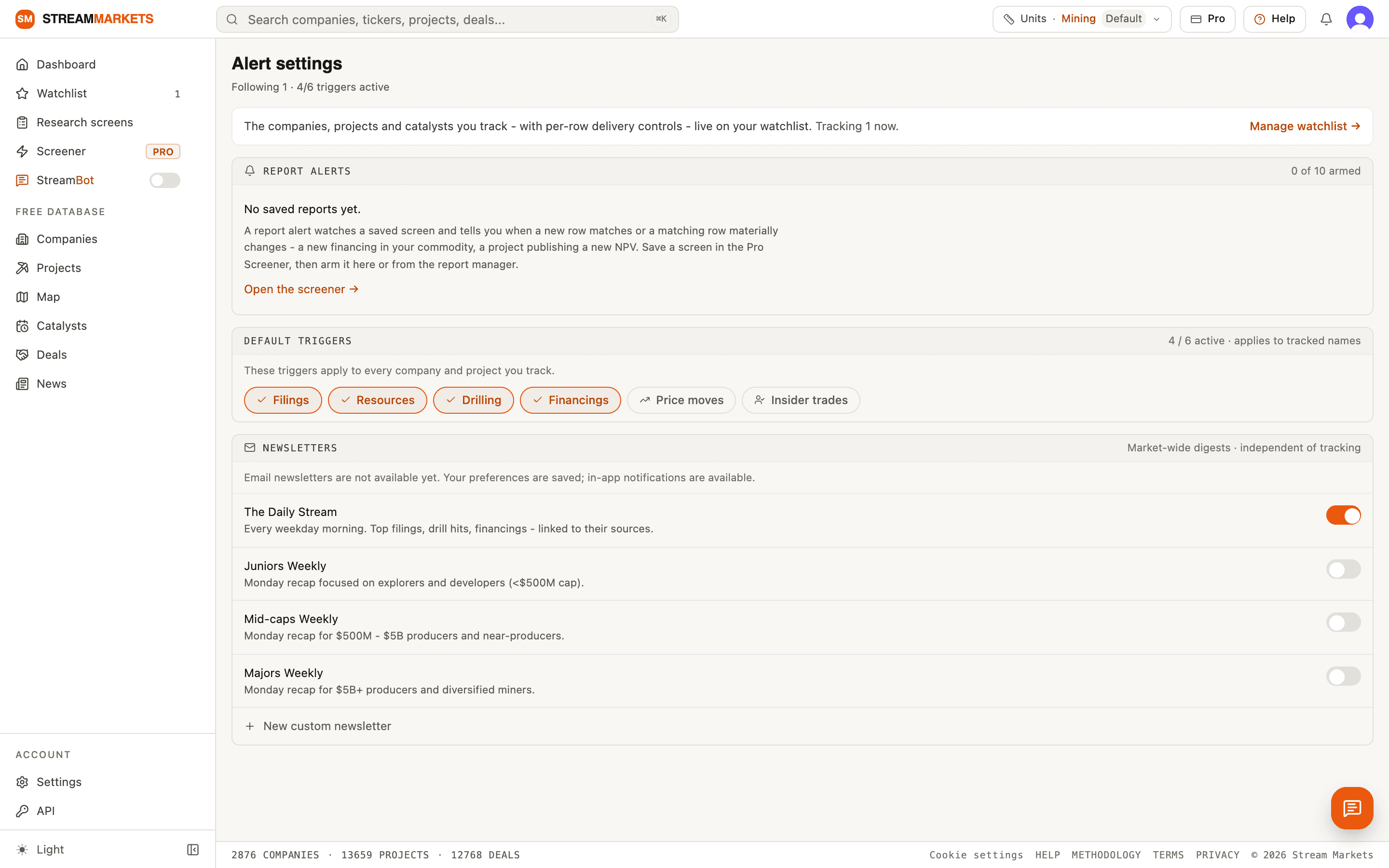
Your watchlist decides what you track. The Alerts page decides how those updates reach you - which events count as alerts, which saved reports can notify you, and which newsletters you get. This page walks each control in the order it appears.
What you track vs how it reaches you
Say you follow BHP and a handful of lithium juniors - the star on any company or project page adds them. That list lives on the watchlist, along with per-row delivery icons for each name. The Alerts & delivery page sits one level up: it holds the triggers that apply to everything you track, your report alerts and your newsletter subscriptions. The alerts themselves live in your inbox - the bell in the header. The page header sums it up in one line - something like ‘Following 16 · 4/6 triggers active’.
Your inbox
When a tracked company or project publishes news, a deal or a filing, an alert lands in your inbox - the bell in the header. It opens as a panel on the right, so you can take a quick look without leaving the page you are on; pin it to keep it open. Each row names the event, the type - Filing, Drilling, Financing and so on - and the name that fired it, dated by when it happened, and opens the story or deal itself. Unread alerts carry a solid dot; open one and it is marked read, or use Mark all read to clear the lot. Anywhere else that row appears - the company page, the deals tab, the news feed - it shows a New pill until you have opened it.
Default triggers
Six triggers decide which events become alerts, and they apply to every company and project you track. Turn a trigger off and that kind of event stops alerting across your whole watchlist.
- Filings - annual reports, quarterlies, technical reports, MD&A.
- Resources - mineral resource or reserve estimate updates.
- Drilling - new drill intercepts and assay releases.
- Financings - equity raises, debt, M&A, royalty and streaming transactions.
- Price moves - share price moves more than 5% on above-average volume.
- Insider trades - director or officer buys or sells in your watchlist.
Report alerts
A report alert watches a saved screen and tells you when a new row matches or a matching row materially changes - a new financing in your commodity, a project publishing a new NPV. The panel lists every report you have saved, screener views and builder queries together, with a switch per row. You can arm up to 10 at once - the header shows how many are armed. Email is a sub-choice of the in-app alert: you cannot have an email-only report alert. If a report’s last check failed, the row says so instead of watching silently.
Reports are built and saved in the screener, and the Research screens page carries the same control per report - Off, Notify me, or Notify and email. Arm a report in either place; they are one setting.
Newsletters
Newsletters are market-wide digests, separate from what you track. Four presets cover the common cuts, and you can add your own custom rule - pick a market-cap tier, a country and a commodity, and a weekly issue covers just that slice. Custom newsletters can be edited or deleted at any time.
- The Daily Stream - every weekday morning. Top filings, drill hits, financings, linked to their sources.
- Juniors Weekly - Monday recap focused on explorers and developers (<$500M cap).
- Mid-caps Weekly - Monday recap for $500M - $5B producers and near-producers.
- Majors Weekly - Monday recap for $5B+ producers and diversified miners.
- Custom newsletters - your own tier, country and commodity rule, delivered weekly.
What each channel delivers today
In-app alerts appear in your Inbox when matching events are recorded. Email depends on the delivery controls and availability shown in the app. If a control says email delivery activates at launch, your preference is saved but email is not yet sending. Once delivery is available, check both global preferences and the individual follow, report or newsletter. A digest does not send immediately for every event.
Where next
Per-name delivery - the bell and envelope icons on each row you follow - is covered in the watchlist guide. Building and saving the screens that report alerts watch is covered in the reports guide.
Quick steps
- Open Inbox to read updates; open Alert settings for event triggers and report alerts.
- Check the followed name or monitored catalyst and its delivery controls.
- Use Settings · Notifications for delivery preferences. Saving a report does not enable its alerts.
Reading and controlling updates
- The bell opens Inbox in the workspace when StreamBot is enabled. Opening an alert marks it read; asking StreamBot to explain unread updates does not.
- Followed companies/projects, monitored catalysts and watched reports have separate controls. Disable the appropriate one to stop its updates.
- SMS is not currently delivered. A stored phone/SMS preference does not mean texts are being sent; the control explains availability.
- Updates are delivered in the app. Email alerts, digests and newsletters are not available yet.
An expected alert or email has not arrived
- Check that you are following the right name, that the event category is enabled, and that a matching change has actually been recorded. Following is not a promise to backfill every historical event.
- For report alerts, confirm the report is saved and its watch/delivery settings are enabled. Reopen its filters to see whether the event matches.
- Check Inbox for updates. Alert emails, digests and newsletters are not sent at this stage.
- Sign-in codes and billing receipts are separate from alert emails and remain available.
- If the issue persists, email hello@stream-markets.com with the affected name/report, event and approximate time. Do not include passwords or authentication links.